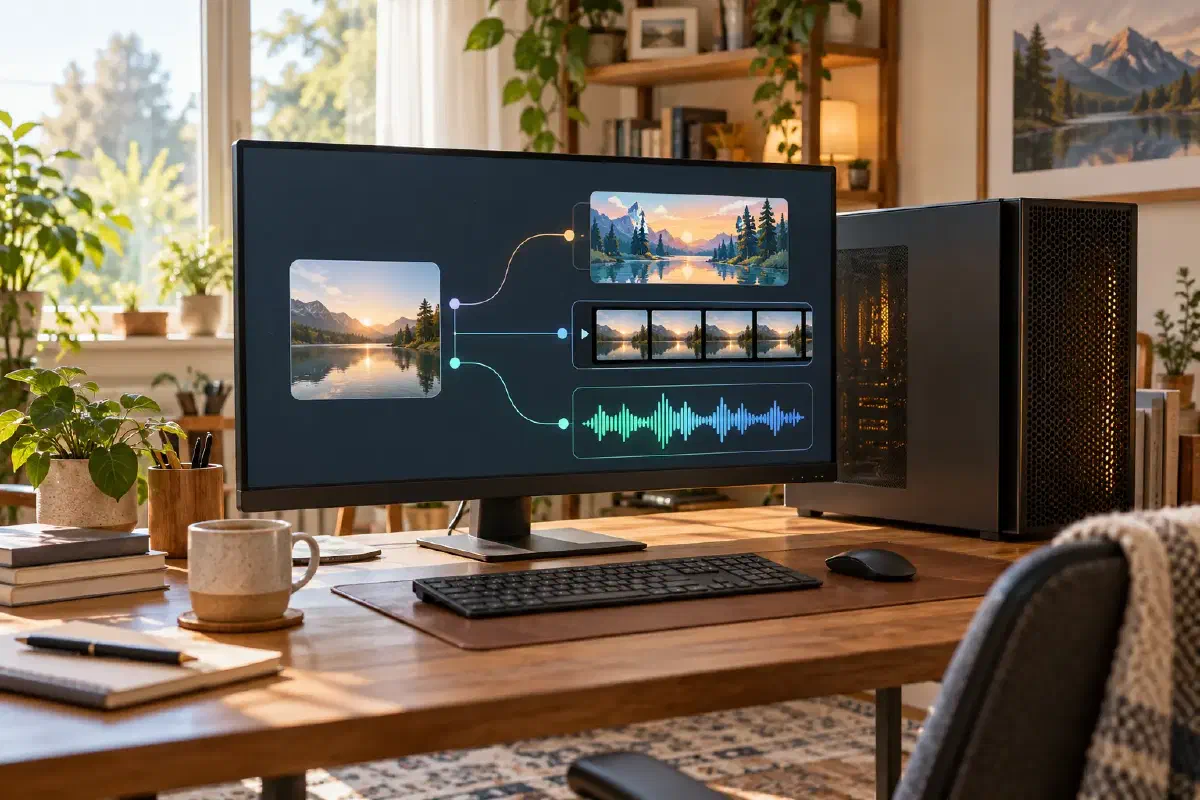
Hosted AI services can charge another credit each time you retry an image, while different production tasks may require different subscriptions. Local AI begins with a practical question: can you move a repeatable part of that work onto a computer you already own?
This introduction explains the terms, benefits, limitations and production areas before asking you to install another tool.
Local AI and open-source AI are not synonyms#
In this series, local AI means that model inference and output generation run on your computer. It describes where the work is performed.
Open-source AI describes access and usage rights. The Open Source Initiative definition includes freedoms to use, study, modify and share the system, together with access to the preferred form for making modifications, including relevant code, parameters and data information.
| Term | Main question | Important limitation |
|---|---|---|
| Local AI | Where does the model run? | A locally installed app can still call an external API |
| Open-source AI | What may people use, inspect, modify and share? | A free model download does not automatically meet this definition or permit commercial use |
| Cloud AI | Does the workload run on someone else’s servers? | Setup can be easier, but billing, uploads and service policies apply |
Tikklabs therefore uses local AI as the series name. We check openness and licensing separately for every application and model.
Four practical benefits#
1. Reduce per-generation credits for repeatable work#
A fully local step does not consume a hosted service’s generation credits each time you retry it. This can matter for repeated thumbnail backgrounds and illustrations.
Local does not mean cost-free. Electricity, storage, setup and maintenance still count. If you buy hardware specifically for AI, that cost belongs in the comparison too. Testing on hardware you already own is a different decision from purchasing a new workstation.
2. Save and reuse the production process#
Local creation tools can preserve the model, parameters, dimensions and processing steps used for a result. ComfyUI represents those steps as a node graph and can save workflows and generation settings for later use.
Record the application and model versions as well. The same workflow does not guarantee identical speed or output in every environment.
3. Reduce external uploads#
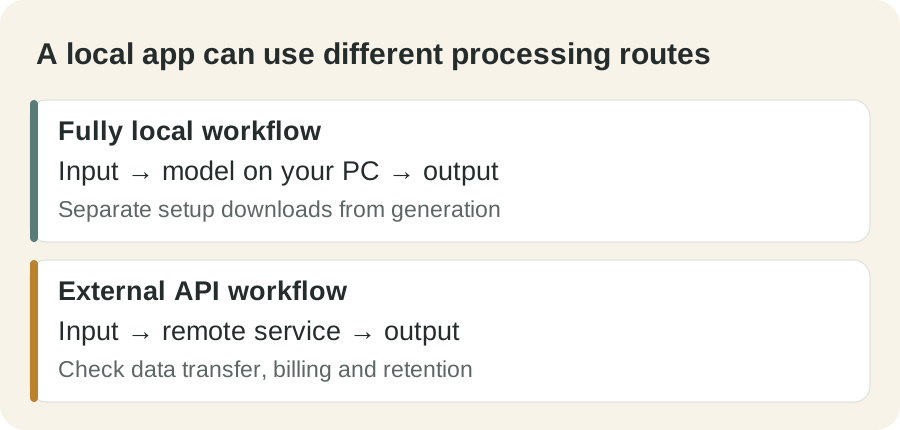
If models and inputs remain on your computer and the workflow does not call an external API, the generation step can run without uploading the material to a hosted model. This can be useful for unpublished or private working material.
A local installation does not guarantee that every operation is offline. Model downloads, updates, partner nodes and cloud APIs are separate connections. The official ComfyUI repository distinguishes local execution from optional API nodes and documents an offline mode for its core.
4. Connect repeatable steps#
You can combine generation, upscaling, masking and other repeatable operations in one workflow. Once stable, that workflow can be reused or connected to another production tool.
The same flexibility creates complexity for beginners. Start with the shortest workflow that produces one usable result before building a large automated pipeline.
What can local AI create?#
| Area | Example tasks | Check first |
|---|---|---|
| Images | Thumbnail backgrounds, illustrations, editing, upscaling | Model, resolution, VRAM and commercial-use terms |
| Video | Short animation from an image, clips, frame interpolation | Processing time, storage and model requirements |
| Speech and TTS | Local narration and text-to-speech | Language quality, voice rights and model/output license |
| Text and LLMs | Drafting, summarization, classification, document Q&A | Model size, accuracy, document privacy and license |
The official ComfyUI project describes node-based workflows for images, video, audio, 3D and text. That does not mean every beginner should use ComfyUI for every area.
Tikklabs uses ComfyUI primarily for image and video production. For TTS, we will compare ComfyUI extensions with dedicated speech applications and choose the route a beginner can reproduce most reliably. Local LLMs require a separate choice of application and model.
What is ComfyUI?#
ComfyUI represents generation steps as boxes called nodes and connects them with lines. A basic image workflow looks roughly like this:
Load a model → enter text → choose image dimensions → generate → save the image
A conventional app may hide these settings inside menus. ComfyUI exposes the process on a canvas, making it easier to see which model and parameter reaches each output and to reuse a successful workflow.
ComfyUI and a generation model are separate components. ComfyUI connects and executes the workflow; a checkpoint such as SDXL supplies the model used to generate the image. Installing ComfyUI does not automatically install every model you may need.
Who should try local AI?#
It is worth running a small test on your existing PC when you:
- create the same type of image or audio repeatedly;
- find monthly subscriptions or generation credits burdensome;
- want to adjust and reuse the production process;
- want to reduce the material uploaded to external services; or
- can spend some time on setup and troubleshooting.
If your usage is occasional, setup time is scarce, or you need a particular hosted model immediately, subscribing only when needed may be cheaper. A hybrid workflow is also valid: move only the repeatable step to local tools.
Start before buying hardware#
- Choose one output. For example, one background image for a blog thumbnail.
- Test your current computer. Application support and a particular model’s practical requirements are separate questions.
- Use the smallest official workflow. Avoid adding several custom nodes and models to the first test.
- Record the time required for one usable result. Include revisions and troubleshooting, not only generation time.
- Compare the same task with a hosted service. Decide about subscriptions or hardware only after comparing quality, time and cost.
A GPU name or VRAM number alone cannot classify every local AI task as possible or impossible. Images, video, models, resolution and batch size have different requirements. Tikklabs practice guides record the tested environment and model with the result.
Local AI production series#
Unpublished guides are marked planned rather than linked to missing pages. We connect them after the workflow has been run and checked.
| Step | Guide | Status |
|---|---|---|
| 0 | What local AI is and what it can provide | This page |
| 1 | Install ComfyUI on Windows and generate a first image | Published |
| 2 | Understand the ComfyUI canvas, nodes and workflows | Planned |
| 3 | Create a blog image with SDXL | Planned |
| 4 | Compare prompts, seeds, samplers and resolution | Planned |
| 5 | Add LoRA, ControlNet and upscaling | Planned |
| 6 | Turn an image into a short video | Planned |
| 7 | Compare time, VRAM and storage for local video | Planned |
| 8 | Create Korean speech with local TTS | Planned |
| 9 | Check consent, voice rights and commercial-use licenses | Planned |
| 10 | Compare local costs with subscriptions using a finished task | Planned |
This series does not turn documentation into a fictional first-hand review. A new user follows the process, records where it fails, resolves the issue and checks the finished result before we describe it as tested.
Next step#
If ComfyUI is not installed—or installed but barely used—continue with Install ComfyUI on Windows and generate a first image. If it is already installed, do not repeat setup blindly: identify the installation type and model folder, then begin at the first-image section.