If a quick YouTube search keeps turning into a long viewing session, changing what appears on screen may help. Start by distinguishing reducing recommendations, hiding interface elements, and setting a viewing limit. These controls have different scopes.
Instructions were checked against official help pages and developer listings on October 5, 2026. Menu labels and hiding behavior can vary by version.
Choose a method for your device#
| Environment | Method | Scope and limitation |
|---|---|---|
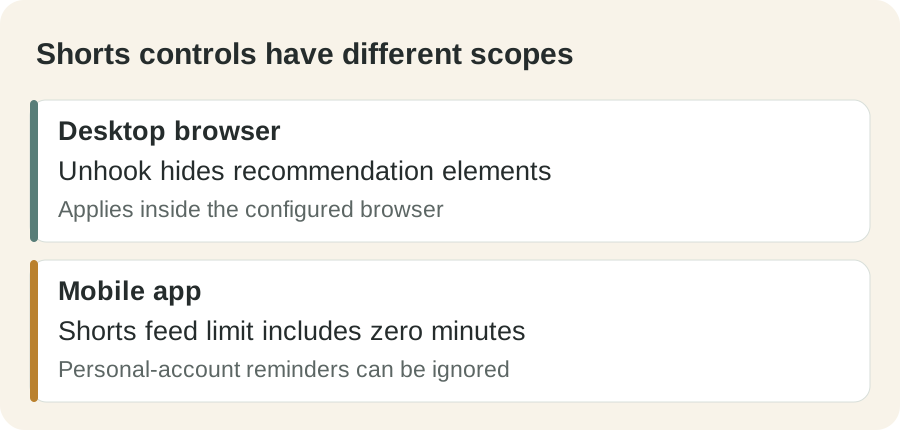
| Desktop Chrome, Edge, Firefox | Unhook | Hides elements in that browser. Does not configure the YouTube app or other browsers. |
| Firefox for Android | Unhook | The developer lists mobile-web support. Does not affect the native app. |
| Android or iPhone YouTube app | Shorts feed limit | Includes zero minutes; personal-account reminders can be ignored. |
| App Home feed | Show fewer Shorts | Recommendation feedback, rather than an access block. |
| Account history settings | Delete and turn off watch history | YouTube documents this for removing Home recommendations; deletion loses existing history. |
Desktop: hide recommendations with Unhook#
Install through the developer’s official listing, checking that the publisher is Unhook.
- Install the extension and reload YouTube.
- Open its popup and enable Hide Homepage Feed.
- Enable its Shorts option. The Chrome description lists Hide YouTube Shorts, while Firefox lists Hide Shorts Tab; labels can differ.
- Optionally hide related videos and disable autoplay.
- Check Home, search results, a regular video and a direct Shorts link separately.
Hiding the interface does not establish that every Shorts URL is inaccessible. YouTube changes can also affect the result. If normal viewing breaks, turn options off individually or disable the extension and reload.
Mobile app: set a Shorts feed limit#
YouTube’s official instructions specify signing in, opening You → Settings → Time management → Shorts feed limit, then selecting a duration, including zero.
When the limit is reached, a reminder appears. The documentation says users can dismiss or ignore it. Treat this personal-account setting as a viewing reminder, not an irreversible lock. If the menu is missing, check your app update and account state against the current help page. Do not assume the same setting works on desktop web.
Official instructions: Set a Shorts feed limit
Reduce recommendations without an extension#
In the app’s Home feed, open the menu above a Shorts grid and choose Show fewer Shorts. This reduces recommendations; it does not remove access to every Short.
YouTube also documents deleting and turning off watch history if you do not want Home recommendations. Deletion loses your previous watch history, so consider whether that trade-off is necessary. This is not a Shorts-only control.
Official instructions: Manage recommendations and search results
Why the original uBlock Origin is not a Chrome installation option#
Current Chrome no longer supports the Manifest V2 framework used by original uBlock Origin. Firefox’s uBlock Origin and uBlock Origin Lite are separate products. Cosmetic filters that hide page elements are also different from blocking every Shorts URL.
Start with the extension options or the app controls above rather than maintaining custom selectors. If you already use filters, check that regular videos, search and subscriptions remain visible.
Chrome’s official support timeline
Measure the effect on your own use#
These settings cannot guarantee a particular number of hours saved. Compare your viewing time and interruptions for a few days before and after making a change.
The goal is easier intentional viewing. If hiding Home recommendations is enough, you do not need to change every available setting.