
This is the next step after the local AI pillar guide. Start with that guide if you first need the difference between local and open-source AI, the available production areas and the cost model.
This guide narrows the task to preparing ComfyUI on Windows and confirming one SDXL image. If ComfyUI is already installed, identify the installation type and model folder rather than reinstalling it, then continue at the first-image steps. This is not a measured benchmark for a particular GPU.
Choose one workload to move first#
| Situation | Starting point |
|---|---|
| Repeated backgrounds or illustrations; a suitable PC already available | Try local image generation for that task |
| Occasional use; little time for configuration | Free allowances or a subscription only when needed |
| Mixed image, voice and video work with tight deadlines | Combine local and hosted tools |
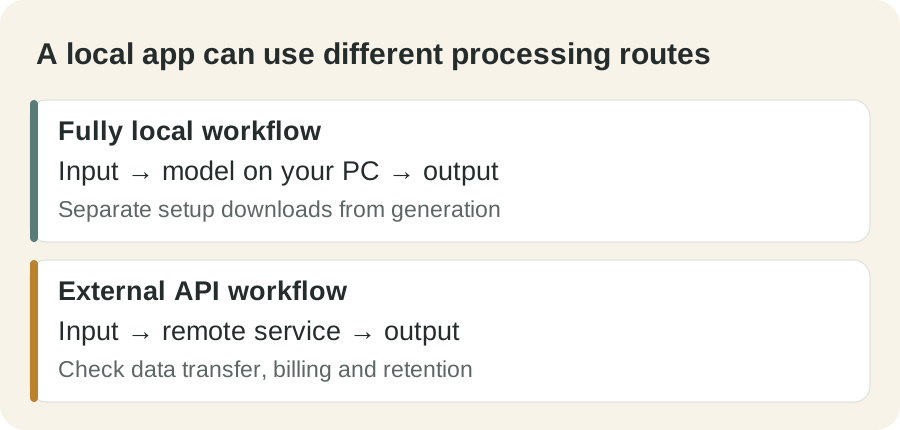
| Client or internal material | Check external API and upload behavior as well as the model |
Local images, text-to-speech and chat models are separate workloads. Installing an image tool does not automatically set up voice generation.
Start ComfyUI on Windows#
- Download through the official Windows installation page.
- Install and launch Comfy Desktop, then create your first ComfyUI instance. Check available storage for models and outputs.
- Open the official SDXL Base model page and review its license. This example uses
sd_xl_base_1.0.safetensors. - Place the model in that instance’s
models/checkpointsdirectory. The full path depends on your installation location and Desktop version. - Load the basic flow from the official text-to-image example. Select SDXL Base in Load Checkpoint, rather than the SD1.5 model shown in that example.
- Set Empty Latent Image to 1024×1024 and batch size to 1. Start without extra LoRAs or custom nodes.
- Enter a prompt such as
a ceramic mug on a wooden desk, soft daylight, simple background. Select Queue or pressCtrl+Enter. - Confirm that Save Image shows a result. Repeat a small test and record quality, time and revisions.
The official SDXL examples explain that the Base model works as a regular checkpoint. You do not need to add a Refiner for your first test.
Troubleshoot the first run#
| Problem | First check |
|---|---|
| Model missing from the selector | Check the active instance’s checkpoints folder; refresh or restart |
| Out-of-memory error | Use batch size 1, close other GPU applications, and consider a lighter model |
| Missing nodes | Return to a basic workflow that does not require extra plugins |
| Unsatisfactory output | Change model, prompt or resolution individually and compare |
Application support is different from a model’s hardware needs. Memory use depends on the model, resolution and concurrent tasks. Test your current machine before buying hardware for AI.
A free download does not establish commercial permission#
SDXL Base 1.0 uses CreativeML Open RAIL++-M, which includes use restrictions. Check separate terms for derivative checkpoints and LoRAs; not every Stable Diffusion model has identical terms.
For speech, XTTS-v2’s public license permits only non-commercial use of the model and its outputs. It is not a blanket free recommendation for paid deliverables or revenue-generating content. Assess language support, quality and the actual model license together.
Compare usable results before cancelling#
Monthly local cost = additional electricity + allocated hardware cost + actual maintenance expenses.
Using a PC you already own differs from buying one specifically for AI. Also record time spent reaching an acceptable result. Compare the cost of a finished, usable image rather than the raw number generated.
Move one recurring job first. Reduce the subscription only when local quality and turnaround meet your needs, keeping hosted tools for work that is harder to replace.
Documentation and license check: October 5, 2026.